
Display
Other Language Setup
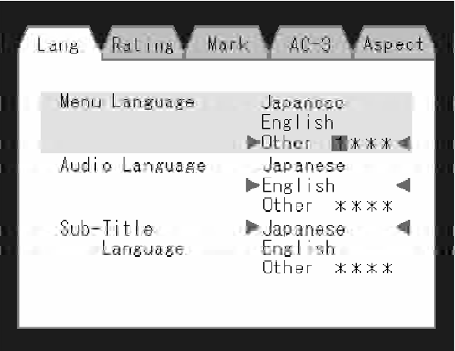
DVD Player Language Menu
All of the Language settings have a special Other setting to accommodate languages other than Japanese or English.
These languages are selected using a special four-digit code.
To enter a new language code, activate the DVD Setup Menu. To enter DVD Setup Menu stop the DVD, enter radio disc mode, then DVD setup and follow these additional instructions:
• Using the remote control Up and Down cursor buttons, highlight the Language item you want to edit, and then press the remote control ENTER button.
• Using the remote control Down cursor button, select the Other setting, then press the remote control’s Right cursor button to begin editing the setting.
• Using the remote control Up and Down cursor buttons, select a digit for the current position. After selecting the digit, press the remote control’s Right cursor button to select the next digit. Repeat this digit selection sequence for all four digits.
• When the entire four-digit code is entered, press the remote control’s ENTER button. If the language code is not valid, the numbers all change back to * . If the digits are visible after this step, then the language code is valid.
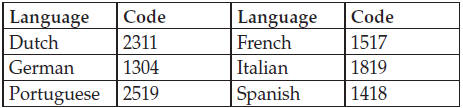
Here is an abbreviated list of language codes. For more language codes, please contact the dealer where the vehicle was purchased.
See also:
Connect Or Disconnect Link Between The Uconnect™ Phone And Mobile Phone
If you would like to connect or disconnect the Bluetooth
connection between a Uconnect™ Phone paired mobile
phone and the Uconnect™ Phone, follow the instructions
described in your mobile p ...
Venting Sunroof — Express
Press and release the Vent button within one half second
and the sunroof will open to the vent position. This is
called “Express Vent”, and it will occur regardless of
sunroof position. Duri ...
Six-Speed Automatic Transmission (C635) — If Equipped
The shift lever position display (located in the instrument
panel cluster) indicates the transmission gear range. You
must press the brake pedal to move the shift lever out of
the PARK position ...